Version Description
- robot code app version 1.0.0
- AIVISON Lite version 1.0.0
- SPIKE version 1.6.62 (current latest)
Object Detection
First adjust the focus to the optimal position, no configuration needed, select object detection model, directly recognizes 80 categories of objects, can adjust confidence.
On the LEGO side, if the bottle is detected, a value of 10 is received; otherwise, a value of 0 is received.
Object Classification (Advanced)
- Adjust focus to optimal position, then configure classification target, click left menu Model Configuration -> Classification, use video frame selection for configuration
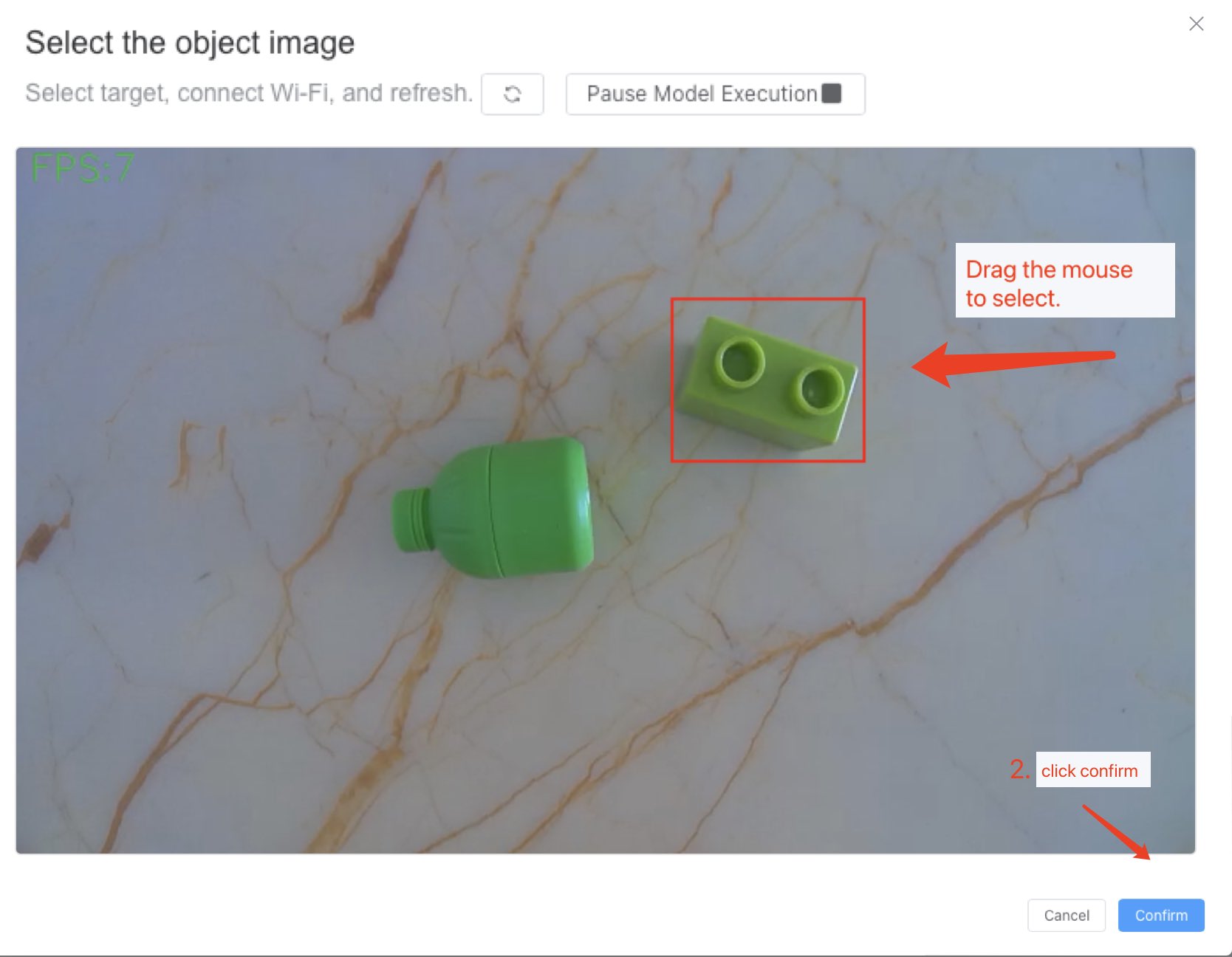
Configuration as follows 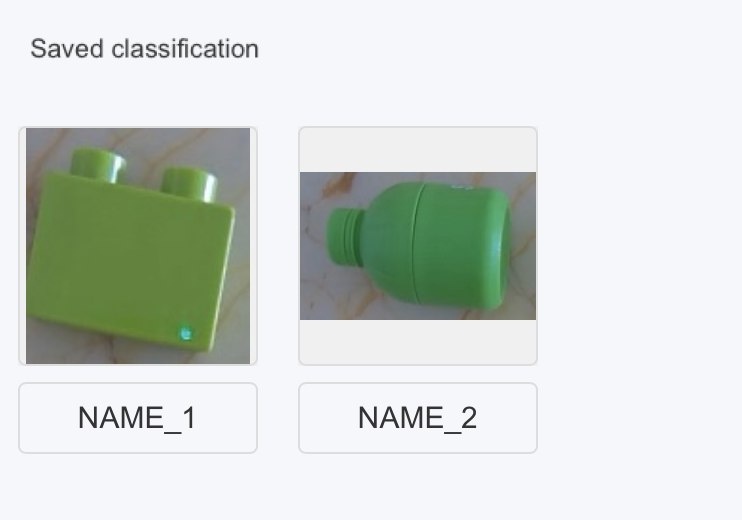
2. Click left menu Code -> code1, for encoding
⚠️ Note
When output coordinates X1, Y1 are both 0, 0, it means position cannot be identified, but classification still works. If coordinates are needed in the project, please exclude cases where coordinates are 0.
Additionally: The more classifications configured, the lower the performance.
On the LEGO side, if the "NAME_1" is detected, a value of 10 is received; otherwise, a value of 0 is received.
Text and Number Detection
First adjust focus to optimal position, no configuration needed, select text and number detection model, can directly recognize printed Chinese and English, can adjust confidence.
Face Detection
- Adjust focus to optimal position, then configure face, click left menu Model Configuration -> Face, use video frame selection for configuration, specific operations refer to object classification. Configuration as follows
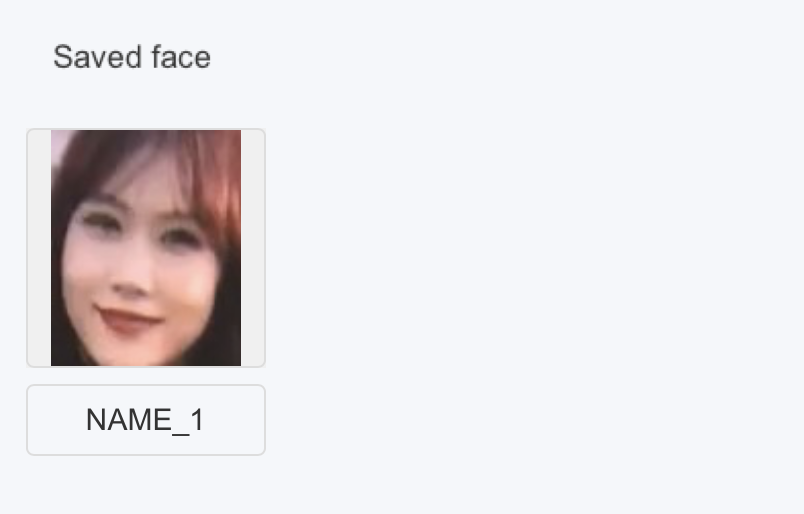
- Click left menu Code -> code1, for encodingThe video detected 4 faces, but since only one was configured, name is "NAME_1" (can be modified in configuration), so only one face actually matches the configuration, which is the one marked NAME_1 in the top right corner.
On the LEGO side, if the face NAME_1 is detected, a value of 10 is received; otherwise, a value of 0 is received.
Target Tracking
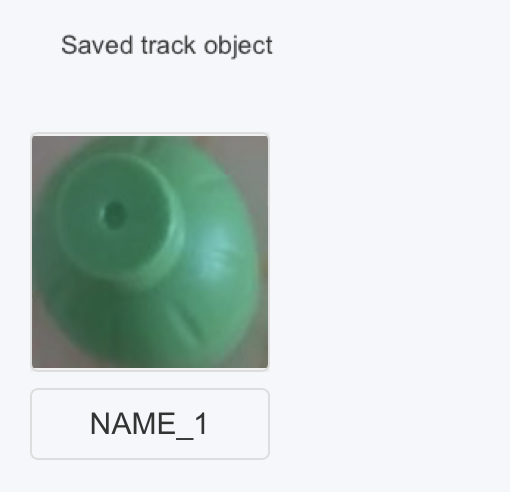
- Adjust focus to optimal position, then configure tracking target, click left menu Model Configuration -> Tracking, use video frame selection for configuration, specific operations refer to object classification. Configuration as follows
- Click left menu Code -> code1, for encoding
⚠️ Note
- Target tracking can only track one target, but can upload up to 5 photos when uploading, can be from different angles of the same target, names must be consistent
- There are two confidence levels here. The first is the confidence level for tracking, which is generally set above 90%. The second is the confidence level for re-detecting an object after it has been lost in the scene, which is generally set above 60%.
Human Pose
First adjust focus to optimal position, no configuration needed, select human pose model, can adjust confidence.
QR Code or Barcode
First adjust focus to optimal position, no configuration needed, select QR code or barcode model, can adjust confidence.
Currently supports the following code specifications for recognition
| Linear Codes | Industrial Codes | QR Codes |
|---|---|---|
| UPC-A | Code 39 | QR Code |
| UPC-E | Code 93 | Micro QR Code |
| EAN-8 | Code 128 | Aztec |
| EAN-13 | Codabar | DataMatrix |
| DataBar | DataBar Expanded | PDF417 |
| ITF | MaxiCode (partial) |
⚠️ Note
Must adjust focus well, must be clear, can recognize and return multiple codes at once in the frame
Color Detection
- Adjust focus to optimal position, although there are default color matches built-in, due to environmental factors such as lighting, it's recommended to configure your own colors, click left menu Model Configuration -> Color, use video frame selection for configuration, specific operations refer to object classification. Configuration as follows
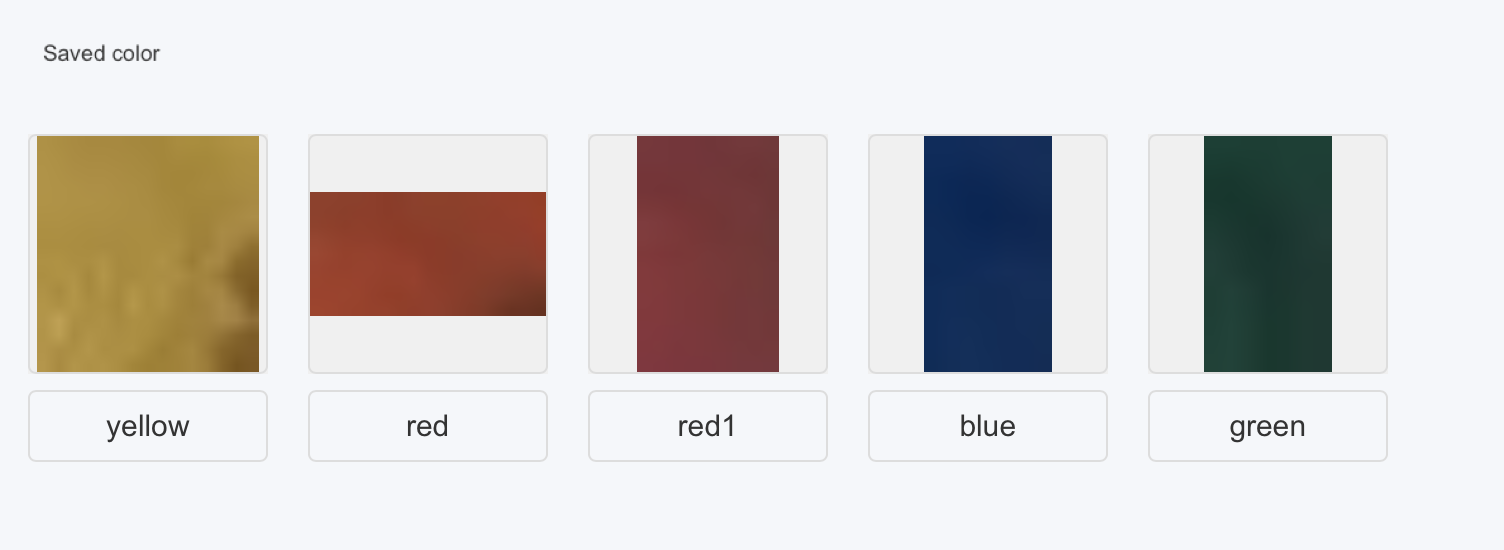
- Click left menu Code -> code1, for encoding
⚠️ Note
- When frame selecting, unlike frame selecting targets, when frame selecting colors, don't frame select areas outside the color, only frame select the specified color
- Model confidence parameter adjustment, parameter range: 1 ~ 100.
Correspondence:
Smaller value → Minimum calculation area block area proportion of entire image area is low (minimum about 0.05%)
Larger value → Minimum calculation area block area proportion of entire image area is high (maximum about 5%)
Function description:
Blocks smaller than minimum calculation area will be ignored, not participating in calculation
By adjusting parameters, can control model sensitivity to small area noise
Line Following
- Adjust focus to optimal position, select line following model, after running, the bottom of the video frame will have a black line detection area, only this area performs black line detection, and displays processing results in white.
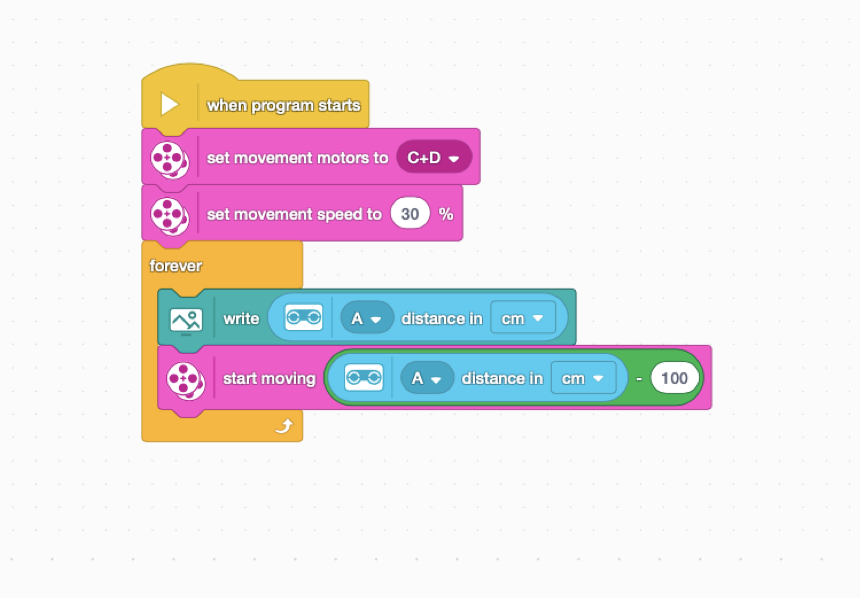
- SPIKE program diagram as follows
⚠️ Note
- Model confidence parameter adjustment, parameter range: 1 ~ 100.
Correspondence:
Smaller value → Minimum calculation area block area proportion of line following area is low (minimum about 0.1%)
Larger value → Minimum calculation area block area proportion of line following area is high (maximum about 10%)
Function description:
Blocks smaller than minimum calculation area will be ignored, not participating in calculation
By adjusting parameters, can control model sensitivity to small area noise - Model can recognize straight line, intersection, no line, returned target names correspond to "LINE", "CROSS", "NONE" respectively. Returned pixel offset is in coordinate X1, negative number represents left side of black line center line, positive number represents right side of black line center line, larger absolute value means further deviation from black line center line.
- When the target is displayed as a LINE, it returns the line's offset at the center position, obtained by acquiring the X1 value; when the target is displayed as a CROSS, it returns the number of corners detected in the image (e.g., 4 for a rectangle, 5 for a pentagon), obtained by acquiring the X2 value. This allows you to determine whether it's a T-junction or a crossroads based on the actual situation.
- Model confidence parameter adjustment, parameter range: 1 ~ 100.